ECS Exec from the AWS Console: Debugging Containers Without the CLI
Background
In an earlier blog, I demonstrated how to use ECS Exec to access running containers in Amazon ECS using the AWS CLI. At the time, enabling and using ECS Exec required switching to the terminal, manually running aws ecs execute-command, and managing CLI context during troubleshooting.
This workflow worked well, but it was not ideal, especially when you were already investigating issues inside the AWS Management Console.
That limitation has now been removed.
What’s New?
As announced by AWS on September 4, 2025, ECS Exec is now available directly in the AWS Management Console.
This means you can:
- Open an interactive shell to a running container without leaving the console
- Avoid switching between console and CLI during debugging
- View and copy the pre-filled AWS CLI command if you still want to run it locally
This update significantly improves the developer and operator experience when troubleshooting ECS workloads.
Why This Matters
Before this update:
- ECS Exec was only accessible via CLI, API, or SDK
- Engineers had to leave the console to debug containers
- The workflow felt fragmented during incidents
Now:
- Container access is one click away
- No inbound ports or SSH access are required
- Debugging becomes faster and more intuitive
This is especially helpful for teams running production workloads on ECS Fargate, where direct access methods are intentionally restricted.
How ECS Exec Works (Quick Recap)
ECS Exec allows secure access to containers using AWS Systems Manager (SSM) under the hood:
- No SSH keys
- No exposed ports
- Fully auditable via CloudTrail and CloudWatch
As long as:
- ECS Exec is enabled on the service or task
- The task role has the required
ssmmessagespermissions
You can connect safely to any running container.
Enabling ECS Exec from the Console
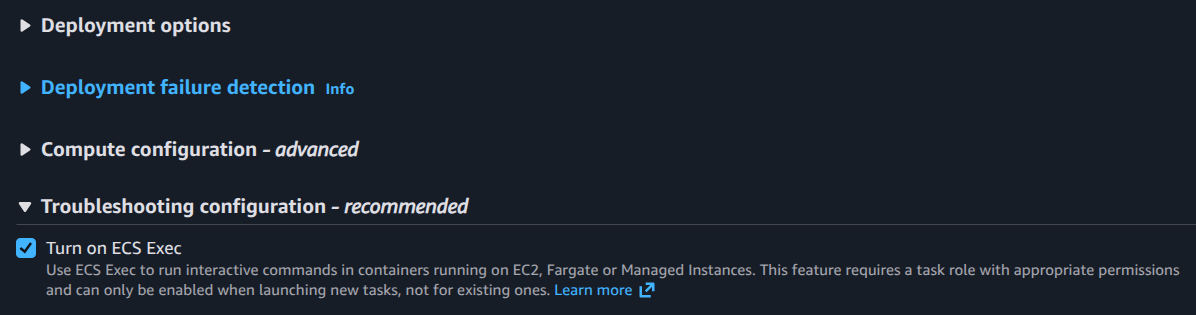
You can now enable ECS Exec entirely from the AWS Management Console.
Option 1: Enable During Service Creation or Update
When creating or updating an ECS service:
- Open the ECS Console
- Select your Cluster
- Create or update a Service
- Enable ECS Exec
- (Optional) Configure encryption and logging at the cluster level
No CLI is required for setup anymore.
Connecting to a Running Container (Console Workflow)
Once ECS Exec is enabled:
- Go to ECS -> Clusters
- Select your cluster
- Open Tasks
- Click a running task
- Select the container
- Click Connect
This opens an interactive shell session directly via AWS CloudShell.


Pre-Filled CLI Command (Best of Both Worlds)
One of the most useful additions is that the console now displays the exact AWS CLI command used for ECS Exec.
Example:
aws ecs execute-command \
  --cluster nginx-cluster \
  --task <task-id> \
  --container nginx \
  --interactive \
  --command "/bin/bash"
You can:
- Copy it
- Modify it
- Run it locally in your own terminal
This is excellent for learning, automation, or documenting runbooks.
Security and Observability
ECS Exec continues to follow AWS security best practices:
- Uses IAM policies
- Supports encryption
- Can log session activity to CloudWatch Logs or S3
- Fully auditable via CloudTrail
All of these settings are now configurable through the console as well.
Availability
- ECS Exec console support is available in all AWS commercial regions
- Works for both services and standalone tasks
- Supports EC2 and Fargate launch types
Final Thoughts
This update removes one of the last friction points in ECS troubleshooting.
By bringing ECS Exec directly into the AWS Management Console, AWS has:
- Simplified container debugging
- Reduced context switching
- Improved operational efficiency
If you’re running containerized workloads on ECS, this enhancement makes day-to-day operations noticeably smoother, especially during incidents.